
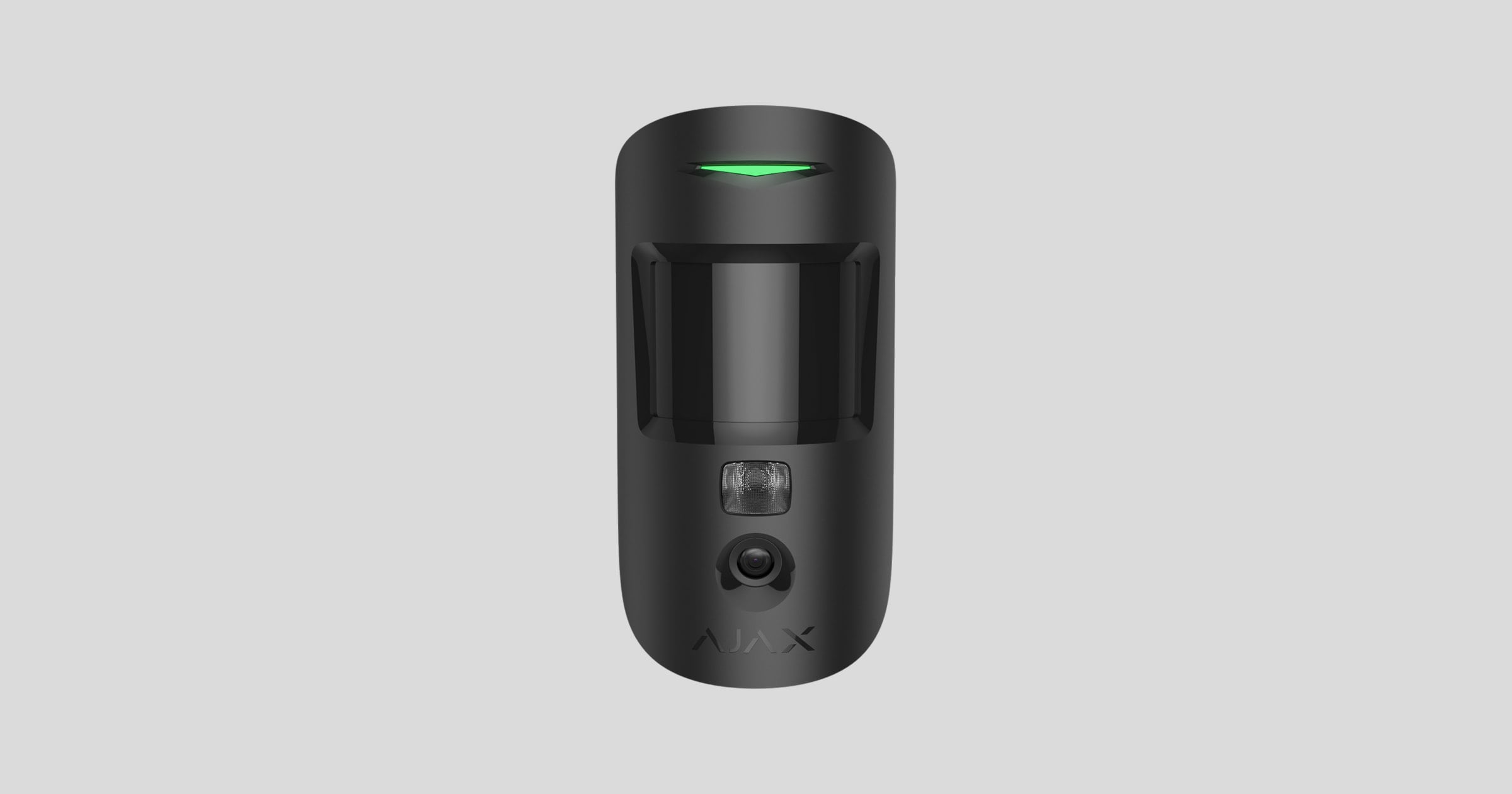
MotionCam Jeweller
Supplier item link
MotionCam Jeweller, sort
Item no. WP 866 C B · Elotec
1,062.00 NOK · Excl. VAT
Open WP 866 C B at Elotec ↗Troubleshooting – step by step
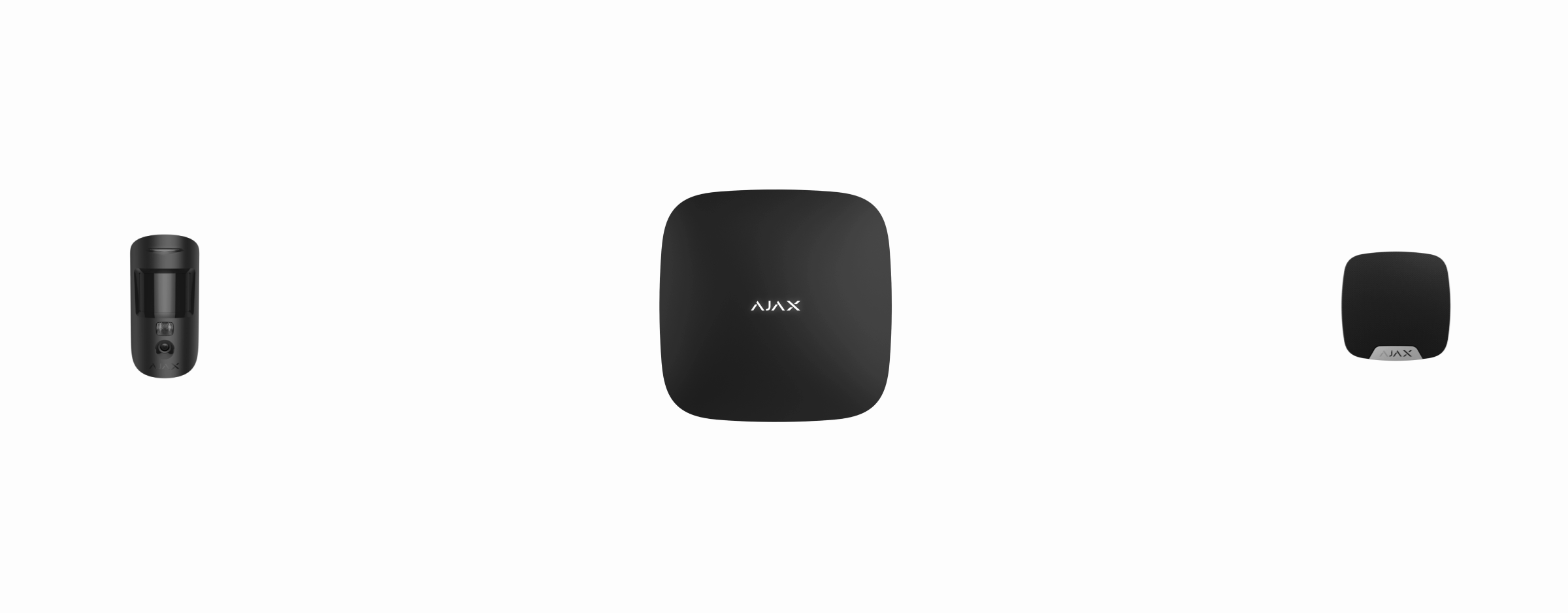
Motion sensor that takes photos to verify alarm.
Wireless · Jeweller
Elotec article number and purchase price: not retrievedColor, frequency and availability must be confirmed.
Use and Maintenance
Arrange maintenance and any test with the monitoring station before opening equipment. Note the model and location. Opening a device may trigger tamper even when the intrusion alarm is disarmed.
Batteribytte: 2 × CR123A, 3 V
- Remove the device from SmartBracket and switch it off.
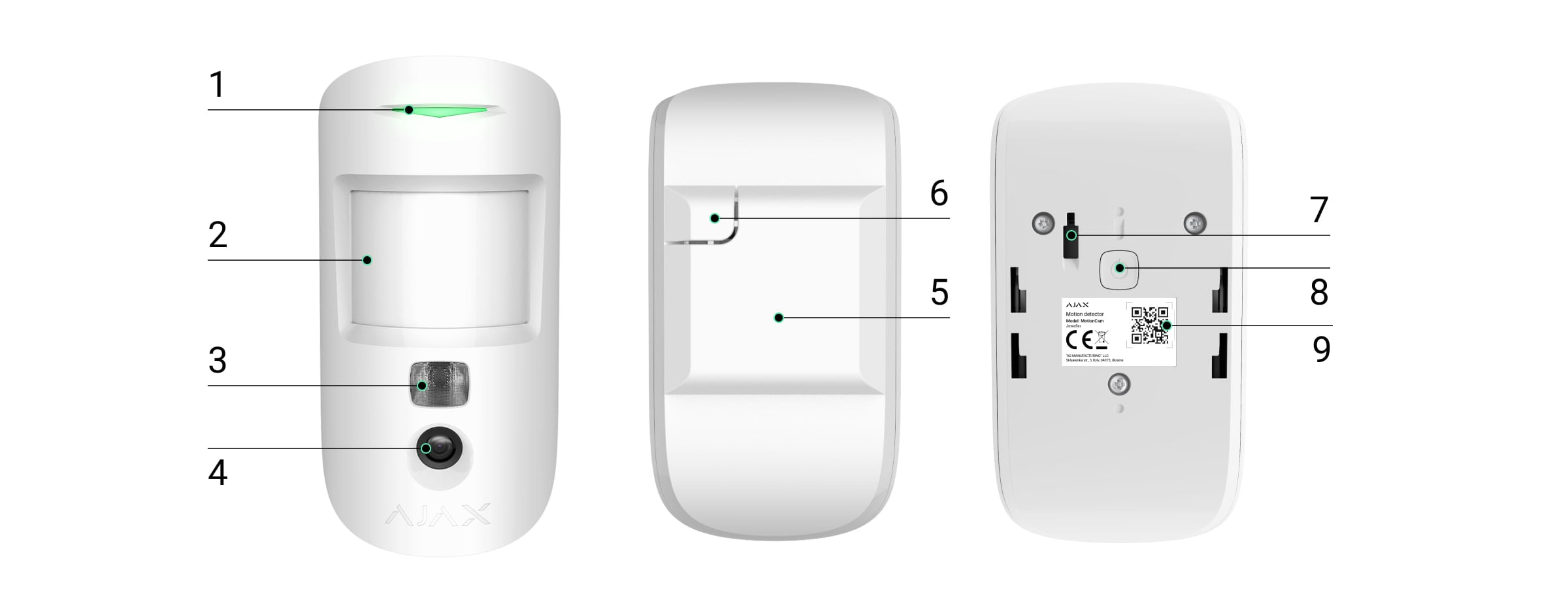
- Undo the three screws and remove the back cover.
- Replace both CR123A batteries. Check polarity.
- Close the cover and secure the screws. Switch on and refit to SmartBracket.
- Check app status after the panel has received an update.
Use new, undamaged batteries. Do not mix new and old. Keep button cells unavailable for children. Battery status may take some time to update.
Original battery guide for this model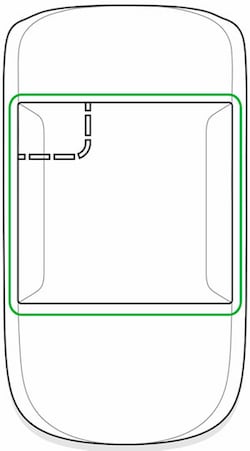
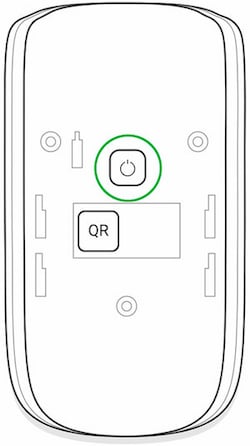
Check after maintenance
Check that the cover and fastener are correct. Open the device in the app and check that errors are gone. Perform the model detection test before the plant is returned to normal operation.
For installer: location and installation
- Check the exact model and supported panel before enrolment.
- Choose a location with a clear view. The manufacturer's normal mounting height for this model is 2.4 metres.
- Run signal and detection tests at the planned location.
- Secure SmartBracket with screws as illustrated. Preserve the breakaway part that activates removal tamper.
- Fit the device to its mount and check cover status and detection again.
Documents and missing
- User guide
Norwegian maintenance summary. Not a complete replacement for the original manual.
- Originalmanual / installasjon
Model-specific original manual with illustrations.
- Tekniske spesifikasjoner
Online specifications. Check variant and region; separate datasheet-PDF is not verified.
- Produsent
Ajax Systems.
- Elotec
Suppliers provided by the Safety Group. Model Elotec article, product link and price have not been verified.
- Videos and software
General training channel. Model-specific film and own software connection are not verified.
Help when the product does not work
Choose the symptom and check the model scope before following the steps. This is troubleshooting, not a list of confirmed product defects.
App reports tamper / enclosure open
Applies to: Ajax device with tamper monitoring; only if the app shows Enclosure / Tamper
- Open Devices in the Ajax app, select the named device and read its enclosure/tamper state. Confirm the room and device.
- Look for a loose cover or mounting bracket, or recent removal. Do not open the device just to check the alert.
- If recently refitted, use the model mounting guide to seat it correctly. Arrange any opening with the monitoring service first.
- Check the app state after refitting. An old event in the log is not the same as an active fault.
Check the result: The current enclosure state is normal/closed.
Stop and get help: For a damaged bracket or persistent alert, contact the installer. Do not disable tamper monitoring to hide the fault.