
Vesta Advanced: open and search recordings
For the standalone VESTA Advanced app, not SmartHomeSec. The camera/recorder must have stored video.
For customers
Follow these steps
Open live view for the correct camera. In the manufacturer’s app illustration, Playback is below the image.
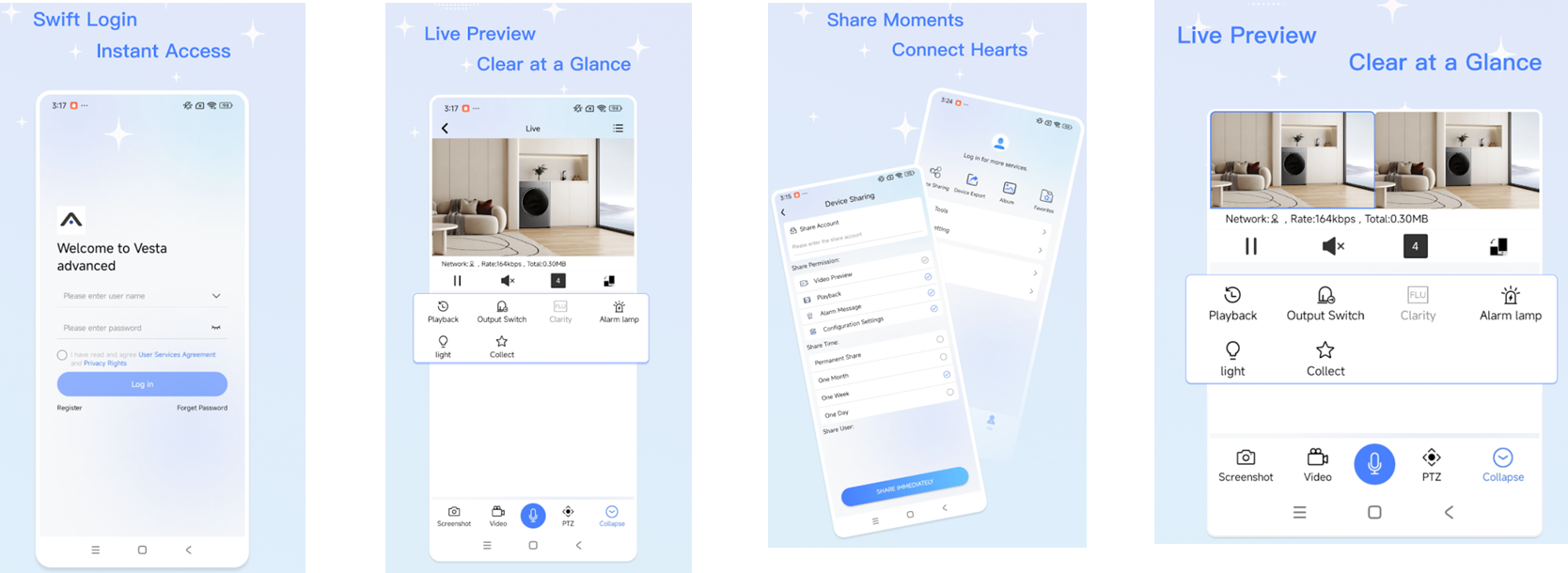
Original illustration from the source below. Menus and appearance may vary by version. Select to enlarge. · Source Tap Playback. Select the period in playback and move the timeline to the event. Menu locations may vary; see the original app video below.
Image status for this step
A dedicated image of this step has not been verified.
Check camera, date and time. If the period is empty, ask the system manager to check that recording was scheduled and storage is working.
Image status for this step
A dedicated image of this step has not been verified.
What you should be able to confirm
The recording from the selected camera and time plays.
After service, confirm the result with the user and notify the system manager/monitoring station as agreed. One working function does not mean the whole case is resolved.
Watch the relevant procedure
Still not resolved?
Do not format storage to look for recordings. For failed SmartHomeSec event playback, use the separate integration guide.
Prepare a support summary