
View camera or request PIRCAM image
← More tasks for the same user
Before you start: Have access to the correct system and area. Use your personal account.
A PIRCAM is an alarm sensor that can capture images. Do not expect it to work like a camera with continuous live video.
iPhone: design can vary with iOS and SmartHomeSec version. The steps below describe documented features.
Steps
- Open Cameras.
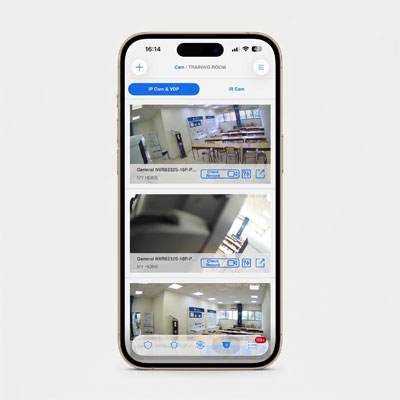
- Select an available camera for live view.
- For a PIRCAM, request an image if the account and model support this feature.
- Check Camera and/or Media Request permissions if an expected option is missing.
You should see this: Use conventional cameras and PIRCAMs according to their respective functions.
If it does not work
- If a menu or feature is missing, check your role, area and the task's source status.
- If the expected result does not appear, note the error, device and time. Contact the installer or responsible administrator.
Source Base and Date
The guide is compiled from the sources below. Menu selection from older PDFs is not confirmed in today's edition.
- SmartHomeSec User’s Guide – Vesta, kopi hos BNT — Date not specified; older app interface
- Vesta GitBook: SmartHomeSec Wizard — Running GitBook; version date not confirmed
Reviewed 08.09.2026. Control against demo plants: not performed.
Something not working?
Choose the symptom. Always check the model and connection before following a procedure.
Images, videos and sources
Images or figures are present on this page. Check the caption for model and version.
No direct troubleshooting video is registered on this page. A general manual is not labelled a troubleshooting video.