
Find a camera recording on the new timeline
← More tasks for the same user
Before you start: Have access to the correct system and area. Use your personal account.
Applies to the documented Vesta Advanced Video integration. The button path to playback and the meaning of colours are not verified for all app versions.
iPhone: design can vary with iOS and SmartHomeSec version. The steps below describe documented features.
Steps
- Open the camera overview and select the camera. The thumbnail is a preview; open the camera to investigate further.
- Open recording playback where available and choose the event date.
- Use the timeline to find the period. The new view supports pinch zoom, colour bands and event icons.
- Start playback and confirm the camera and time. The installer must investigate missing recordings.
You should see this: The recording from the correct camera and time can be played.
If it does not work
- Recording icon without an image: note the time and contact the installer to check storage, clock and recording schedule.
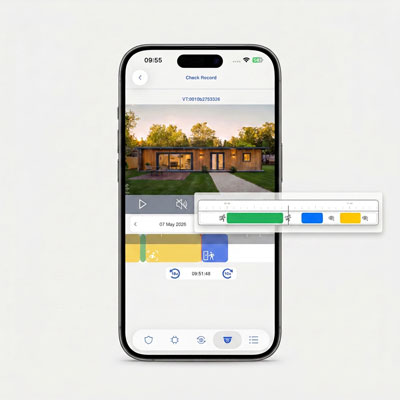
Watch the Western FW35I video on YouTube (Spanish) The link from By Demes 28.07.2026. The video is a function demonstration, not a complete manual.
Source Base and Date
The guide is compiled from the sources below. Menu selection from older PDFs is not confirmed in today's edition.
- By Demes: nye videofunksjoner i SmartHomeSec, 28.07.2026 — 28.07.2026
- Vesta GitBook: APV cameras and playback errors — Running GitBook; version date not confirmed
Reviewed 08.09.2026. Control against demo plants: not performed.
Something not working?
Choose the symptom. Always check the model and connection before following a procedure.
Images, videos and sources
Images or figures are present on this page. Check the caption for model and version.
A direct video link is present on this page. The link text identifies relevance and model.