
Monitor Camera
Supplier item link
A direct supplier item link has not been confirmed for this entry. A general supplier website is not an item link.
Troubleshooting – step by step
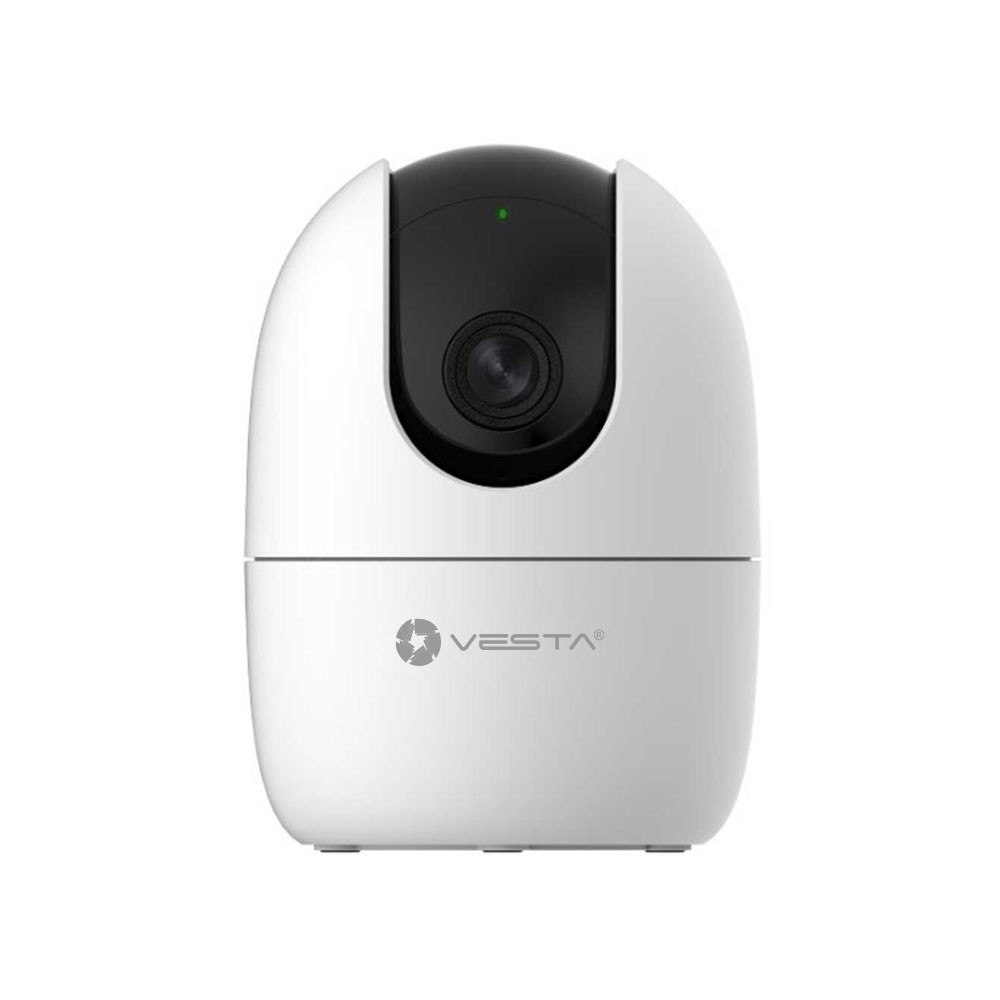
IPC-A1-PTZ-WF
Purchase price: 438,30 NOK excl. VAT
Norexa · 08.09.2026. Access, shipping and assembly are not included. Prices are not automatically updated.
Vesta 3MP WiFi innendørs kamera med Pan/Tilt
Provides video images of the area to which it is directed. The model name shows available information about form and resolution.
Documentation and gaps
No article is marked as complete documented. “Fews” means that a confirmed link is not found in the library, not that the document necessarily does not exist. The overview assesses registered sources; it is not a new check that all external links work.
- User guide
Available – Use and control – dismount manual missing. Not fully verified.
- Original product documentation
Source page associated. Content and completeness must be assessed for the model.
- Installation guide
Installation/installation section found in original source. Complete installation manual is not confirmed.
- Data sheet
Mangler verifisert databladkobling.
- Product image
Product image tilgjengelig.
- Climax / produsent
The manufacturer’s product/model page is not associated.
- Vesta
Product source from Vesta/GitBook associated.
- By Demes
Bekreftet produktlenke tilknyttet.
- Norexa
Article and purchase price can be found in the catalogue extract. Product link and supplier manual are not associated.
Help when the product does not work
Choose the symptom and check the model scope before following the steps. This is troubleshooting, not a list of confirmed product defects.
SmartHomeSec: recording icon appears but video will not play
Applies to: Only Vesta Advanced video integrated in SmartHomeSec. Installer checks are identified below.
- Note the camera and event time. Check whether that time plays in the camera or NVR’s own playback.
- Installer: compare time, time zone and daylight saving settings on the camera/NVR with the Vesta panel. A time offset can make the system search the wrong recording period.
- Installer: check that continuous recording is enabled and MicroSD/HDD storage is working. An event icon does not prove that video was stored.
- Installer: follow the GitBook section “Event Playback Troubleshooting Guide”, including multimedia settings. Arrange a new controlled test after correction.
Check the result: A new test recording opens at the correct event time.
Stop and get help: Recordings that were never stored will not return when settings are changed. Preserve existing recordings; do not format the card or disk.
Open full guide with illustrations and sourcesSources: www.youtube.com — open documentation vesta-guide.gitbook.io — open documentation
Vesta Advanced: no image or offline camera
Applies to: For cameras/NVRs in the VESTA Advanced app. These are initial checks, not a confirmed diagnosis.
- Check whether all cameras are missing or only one channel. Note the device name and error text.
- Check that the phone has internet access. Then try another available connection, such as mobile data, and compare.
- Check visible power and network status at the camera/recorder without opening it. If the recorder has a local picture, tell the installer.
- Open the same camera again in the app. Use the app video if you are unsure how to select the camera or channel.
Check the result: Live video updates and the correct channel is selected.
Stop and get help: If local video works but the app does not, the installer must check remote connectivity and access. No dedicated official error video was found for this message; the app video demonstrates operation.
Open full guide with illustrations and sourcesSources: vesta-guide.gitbook.io — open documentation drive.google.com — open documentation
Vesta Advanced: IVS does not produce the expected events
Applies to: For cameras supporting the selected IVS rule. Configuration should be performed by the system manager or installer.
- Identify the camera and rule: intrusion, tripwire or cross-region. Confirm the model supports it.
- Open the specific IVS video below. Compare the configured area or line with what should be detected.
- Review rule activation and recording setup as shown in the video. Change only the agreed rule.
- Perform an agreed test in the specified area. Check event registration first, then recording and finally the phone notification.
Check the result: The test produces the correct event and agreed playback or notification.
Stop and get help: Do not use siren status as proof that phone notifications are enabled. Vesta documents that in version 2.5.0 the padlock controls lights/siren; notification synchronisation was not included.
Open full guide with illustrations and sourcesSources: bydemes.com — open documentation www.youtube.com — open documentation drive.google.com — open documentation vestasecurity.eu — open documentation