
Manage PIN codes – for authorized account owner
← More tasks for the same user
Before you start: You must have agreed permission to manage the system's user codes.
Do this only if authorised to manage users. Deleting a PIN and removing an app account are different actions. Do not adopt example codes shown in original images.
Steps
- Open Settings → Panel → Code as shown in the older web manual.
- Use your assigned master access if the portal requires it.
- Select the correct area and add or edit the relevant user.
- Give the user a recognisable name and personal code. Check the notification setting for that user's arming/disarming events.
- Save and arrange a test of the new code in the correct area.
You should see this: The user has the correct code and area access.
If it does not work
- If a menu or feature is missing, check your role, area and the task's source status.
- If the expected result does not appear, note the error, device and time. Contact the installer or responsible administrator.
Older screenshots – only show as reference
This is not the documentation of today's menu location.
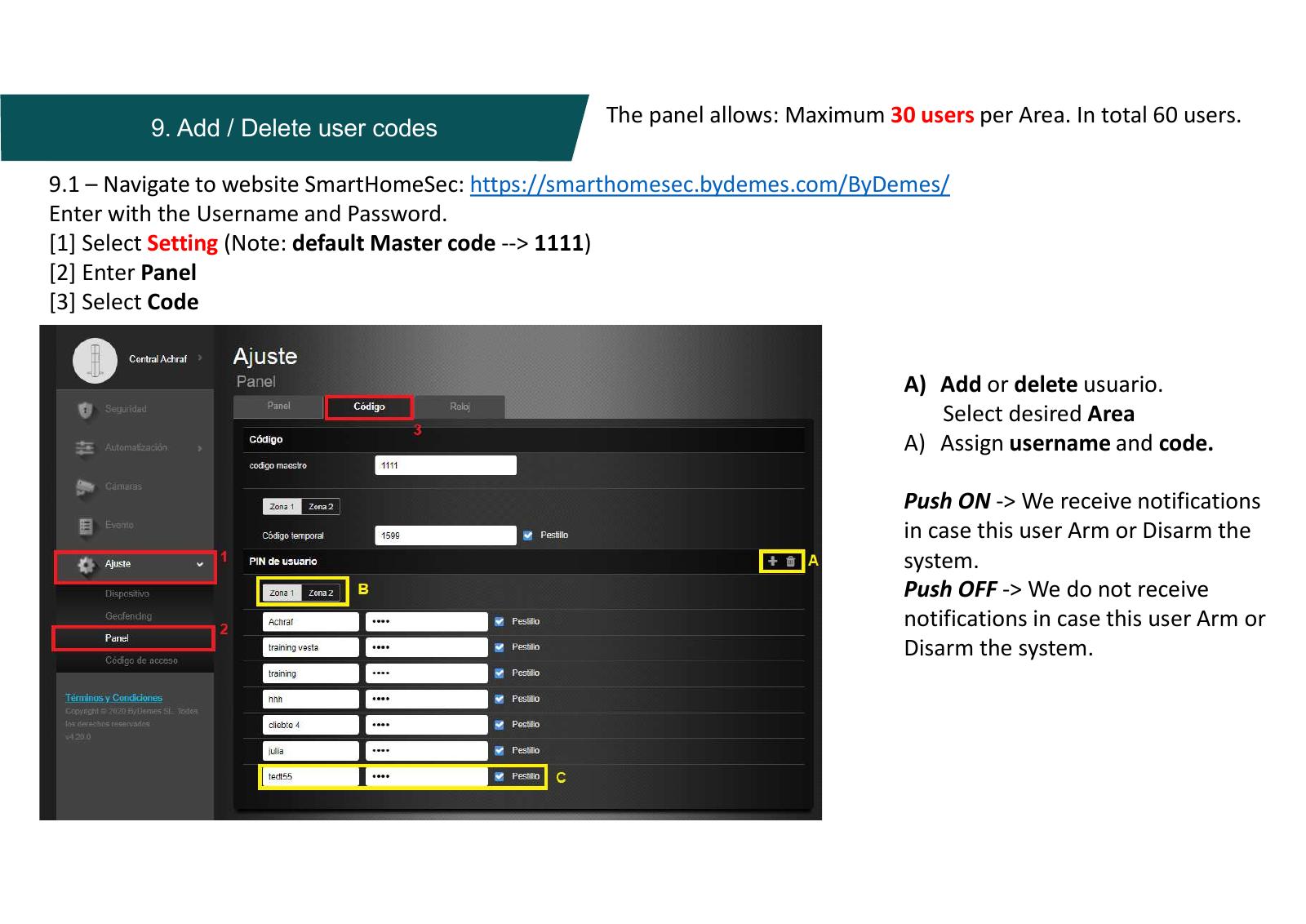
Updated screenshot for this task: missing.
Source Base and Date
The guide is compiled from the sources below. Menu selection from older PDFs is not confirmed in today's edition.
- Vesta Installation Manual – originalmanual hos GI Security — Date not specified; older web portal
Reviewed 08.09.2026. Control against demo plants: not performed.
Something not working?
Choose the symptom. Always check the model and connection before following a procedure.
Images, videos and sources
Images or figures are present on this page. Check the caption for model and version.
No direct troubleshooting video is registered on this page. A general manual is not labelled a troubleshooting video.